Hey there, thanks for stopping by. If you’re here, chances are you’re getting ready to order custom logo vinyl stickers, and you’ve probably stared at your design file for a while wondering: is this the right format? I’ve been running a vinyl sticker shop for seven years now, and let me tell you, I’ve seen it all. I’ve pulled stickers off my production line because the file someone sent over turned out blurry, I’ve had to follow up three times with a customer who sent in a low-res JPEG, and I’ve even turned down a rush order because the file was so messed up we couldn’t salvage it at the last minute. The truth is, most people don’t realize that the file format you send directly impacts how your logo stickers turn out—whether you need them for product packaging, trade show giveaways, or your storefront window. This isn’t just a random preference we have as a supplier; it’s about making sure your stickers look sharp, last as long as you need them to, and don’t cost you extra money in reprints. Let’s break this down, no corporate jargon, just real advice from someone who’s packed and shipped over 100,000 custom sticker orders. Vinyl Stickers
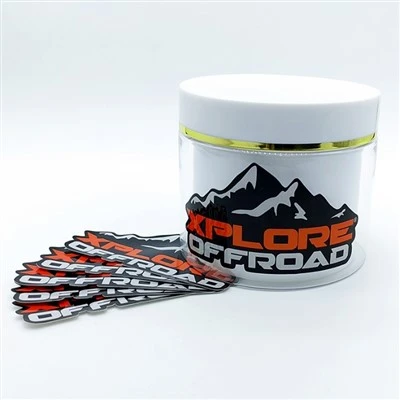
First, let’s get one thing straight: not all design files are created equal. I’ve had customers send me their logo as a screenshot from their website, and I get it—when you’re digging through old files, sometimes that’s all you can find. But a screenshot is a pixel-based file, not a vector one, and stretching it to the size of a 4-inch sticker will turn it into a fuzzy, pixelated mess. Imagine printing your logo on a sticker that everyone walks past at a farmers’ market, and the first thing people say is “wait, is that logo blurry?” That’s the kind of mistake we want to help you avoid. So let’s start with the two main categories of file formats: raster (pixel-based) and vector (math-based). Most of the time, vector is the way to go for logo stickers, but that doesn’t mean raster is totally off-limits—we’ll talk about when raster works, and when it doesn’t.
Let’s start with vector files, because they’re the gold standard for logo stickers. Vector formats are built using mathematical equations, not individual pixels, which means they can be scaled up to a 2-foot window sticker or shrunk down to a tiny laptop sticker without losing any sharpness or detail. That’s a game-changer for custom work, because you never know when you might need to adjust the size of your stickers (we’ve had customers order small laptop stickers then come back a year later for big car decals, and the same vector file worked perfectly both times). The most common vector formats we accept are AI (Adobe Illustrator), EPS, and SVG. Let’s talk about each one, and what works best for your order.
AI is the native format for Adobe Illustrator, which is the industry standard for professional design. If you’ve worked with a graphic designer to create your logo, chances are they have an AI file saved somewhere. The great thing about AI is that it preserves every element of your design—colors, lines, text, all of it—exactly as you intended. We love when customers send AI files because they don’t have to spend time adjusting anything on our end; we can import them straight into our vinyl cutting software, no tweaks needed. One thing to note about AI files: if your design has any placed images (like a photo or a raster graphic), those need to be embedded in the AI file, not just linked. If you send an AI file with a linked JPEG inside it, we won’t be able to access that image, and your design might show up with a placeholder or blank spot. Just tell your designer to embed all assets when saving the AI file, and you’re good to go.
Next up is EPS, which stands for Encapsulated PostScript. EPS is another vector format that’s super widely used, especially for logos that were created in older design software or for projects that need to be compatible with multiple programs. EPS files work almost exactly like AI files—they’re scalable, preserve all design elements, and we can import them directly into our cutting software. The biggest benefit of EPS is that they’re more universal than AI; if you don’t have Adobe Illustrator, you can still open and edit an EPS file with free tools like Inkscape or CorelDRAW. That makes EPS a great backup if your designer only works in Illustrator, or if you need to share your logo with someone who doesn’t have paid design software. One tip for EPS files: make sure the file is saved as “EPS version 10” or earlier. Newer EPS versions might have features that our older cutting software can’t read, so saving it to version 10 ensures compatibility every time.
SVG, or Scalable Vector Graphics, is a bit newer than AI and EPS, but it’s growing in popularity because it’s web-friendly. SVG files are vector-based and are designed to work seamlessly on websites, but they also work great for vinyl stickers. The best part about SVG is that you can usually open, edit, and export them for free with tools like Canva or Inkscape, no Adobe subscription required. That’s a huge win for small business owners or startups who don’t want to pay for expensive design software. When sending an SVG file, just make sure all your text is converted to outlines. If you leave text as editable in SVG, the font on our end might not match the one you used, which could throw off your logo. Converting text to outlines turns it into vector shapes, so the font stays exactly as you see it, no matter what program we open the file in.
Now, let’s talk about raster files, because sometimes that’s all you have, and that’s okay—we don’t want you to stress if you don’t have a vector file handy. Raster formats are made up of tiny pixels, so they work great for photos, complex illustrations, or designs with lots of gradients and shading, but they can get blurry if you scale them too big. The most common raster formats are PNG, JPEG, and TIFF. The key rule for sending raster files for logo stickers is resolution: aim for 300 DPI (dots per inch) at the exact size you want your sticker to be. DPI is a measure of how many pixels are packed into one inch of the image, and 300 DPI is the standard for print work—anything lower, and your image will look pixelated or fuzzy. For example, if you want a 3-inch laptop sticker, your PNG or JPEG file should be 900 pixels wide (3 inches x 300 DPI = 900 pixels). If you send a 100-pixel-wide screenshot of your logo, that’s only 33 DPI at 3 inches, and it’s going to look like garbage when printed.
PNG is the best raster format for logo stickers, hands down. PNG files support transparent backgrounds, which is perfect if your logo doesn’t have a square white box around it—we can cut the sticker exactly to the shape of your logo, no extra border. JPEG files, on the other hand, compress images to make them smaller, which often leads to blurriness, especially around text or sharp lines. If you have to send a JPEG, make sure it’s the highest quality setting (100% quality, no compression) and that your background is either solid or transparent (though JPEG doesn’t handle transparency well, so if you have a transparent logo, PNG is non-negotiable). TIFF is another raster format, and it’s high quality, but it’s much larger in file size, so it might be harder to send through email or a file transfer tool. We can accept TIFF, but PNG is better for most logo designs.
Now, let’s talk about the formats you should avoid, because these are the ones that will give us headaches (and probably end up delaying your order). First, Microsoft Word or PowerPoint files. I’ve lost count of how many customers send me their logo embedded in a Word document, and while Word is great for writing letters, it’s terrible for graphic design. Word stretches and compresses images to fit the page, so your logo will look fine on screen but turn blurry when printed. Same goes for PowerPoint—don’t send your logo as a slide screenshot or embedded in a presentation. Another one to avoid is PDF, unless it’s a vector PDF designed for print. A lot of people send regular PDFs of their logo, which can be either raster or vector, and unless you know how to check if it’s vector, it’s a coin toss. If you do send a PDF, make sure it’s a high-res print PDF, not a web PDF, and that all text is converted to outlines. And please, please don’t send us a photo of your logo. That’s a picture of your logo, not the actual design file, so it’s just as blurry as a screenshot. I’ve had customers take a photo of their logo printed on a business card and send that as the file—we can’t use that, it’s way too low res.
Wait, let’s also talk about color, because file formats go hand in hand with how your logo colors will print. A common mistake I see is customers sending RGB files instead of CMYK. RGB is the color format used for screens (red, green, blue), while CMYK is the format used for print (cyan, magenta, yellow, key/black). RGB colors are brighter and more vibrant on your phone or computer, but when printed on vinyl, they can look dull or slightly shifted. When you send a file, whether vector or raster, make sure it’s set to CMYK color mode. Most design software lets you change this in the document settings; if you’re using a free tool like Canva, just download your file in CMYK mode (Canva calls it “print quality” download) instead of the default RGB web quality. This is super important because if your blue logo turns out to be a slightly different shade on the stickers, you’ll be disappointed, and we’ll have to reprint, which delays your order and costs you extra.
Let me also share a real story that drives this home. Last year, a small café owner came to us needing 500 round vinyl stickers for their grand opening. They sent me a JPEG of their logo, saved at 72 DPI, with a white background. When I opened it, the logo was pixelated, so I reached out to ask for a higher-res file. They replied that was the only one they had, since their graphic designer had left and took the original files. We ended up having to adjust the design, smooth out the lines, and hope for the best. The stickers turned out okay, but they weren’t as sharp as they could have been, and half the customers at the grand opening commented that the logo looked “a little fuzzy.” That’s the exact scenario we want to prevent—having the right file format means you don’t have to settle for less than perfect stickers.
Now, what if you don’t have any of these files? Maybe you only have a screenshot, a physical business card with your logo, or a low-res photo. That’s not a problem at all—we offer free logo vectorization for all our custom sticker orders over a certain size, and we can turn that blurry screenshot into a crisp vector file for you. All you have to do is send us whatever you have, and our design team will trace it, fix any messed up lines, and make it ready for printing, no extra cost. That’s one of the perks of working with a small, local vinyl supplier—we care about your order, not just making a quick buck off you.
At the end of the day, the best file format for your logo vinyl stickers is the one that lets us bring your vision to life without any hiccups. If you have a vector AI, EPS, or SVG file, that’s perfect. If you only have a raster PNG at 300 DPI, that’s great too, as long as the background is transparent if your logo has one. If you don’t have any of these files, just reach out, and we’ll help you get a clean, print-ready design at no extra charge.
We’ve been making vinyl stickers for small businesses, artists, and nonprofits for years, and we know that your logo is more than just a design—it’s the face of your brand. You want those stickers to look as professional and high-quality as your business, and the right file format is the first step to making that happen.
If you’re ready to place an order, or you have questions about your specific file, don’t hesitate to reach out to our team for a free consultation. We’re here to help you every step of the way, from choosing the right size and vinyl type to making sure your design is perfect for printing. We don’t do robotic order forms or generic responses—you’ll talk to a real person who’s handled hundreds of sticker orders, who knows the ins and outs of file formats, and who wants your stickers to turn out better than you imagined. The next great batch of custom logo vinyl stickers is just a conversation away.
Other Labels References:
- Adobe. “Vector vs. Raster Graphics: What’s the Difference?” Adobe Creative Cloud, accessed 2024.
- Canva. “How to Convert RGB to CMYK for Print Design.” Canva Design School, accessed 2024.
- Vinyl Institute. “Vinyl Printing Best Practices for Custom Decals and Stickers.” Vinyl Industry Guide, 2023.
- Inkscape. “SVG File Preparation for Print.” Inkscape Documentation, accessed 2024.
SpeedPrint Era (Xiamen) Digital Co., Ltd.
SpeedPrint Era (Xiamen) Digital Co., Ltd. is one of the most professional vinyl stickers manufacturers and suppliers in China, featured by quality products and low price. Please rest assured to wholesale advanced vinyl stickers made in China here and get quotation from our factory. We also accept customized orders.
Address: Floor 1, No. 27, Xianghong Road, Xiang’an District, 361101, Xiamen, Fujian, China
E-mail: hxmacka@gmail.com
WebSite: https://www.lumolabels.com/
