Alright, let’s cut to the chase—nothing’s more annoying than plugging your iPhone 7 in at 10PM, only to wake up at 7AM and see it’s at 20% battery. If you’re here because your old iPhone 7 is dying overnight like it’s running a marathon without shoes, you’re in the right spot. I’m not some tech bro with a fancy degree— I’ve seen this problem a million times because I run an iPhone 7 battery supply business, and I’ve helped thousands of folks fix this exact issue. Today, we’re talking real fixes, no clickbait, just stuff that actually works for the iPhone 7 (yeah, that old workhorse still has fans, and we keep it running). iPhone 7 Battery
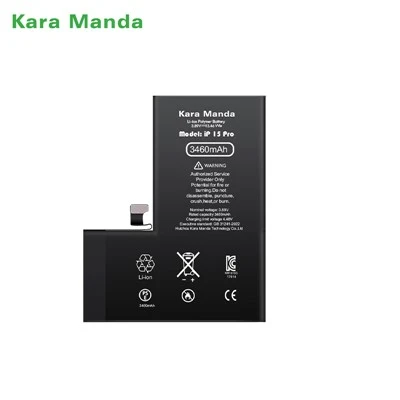
First off, let’s get one thing straight: iPhones don’t just drain for no reason. The iPhone 7 uses a 1960 mAh battery (yeah, we know it’s tiny compared to new ones, but it’s still solid if treated right), and overnight drain is almost always a software or setting mess, not a dead battery—wait, but before you roll your eyes, sometimes the battery is the problem. I’ll circle back to that, but let’s start with the easiest fixes you can do in 2 minutes, no tools needed.
Let’s start with background app refresh. This is the biggest culprit, honestly. For anyone who doesn’t know, background app refresh is when apps update, send notifications, or grab new data even when you’re not using them. A lot of people have every app turned on for this, and at night, that means 15 different apps churning away in the background, draining battery like crazy. For the iPhone 7, this is especially brutal because it’s got an older A10 chip that doesn’t handle too many background processes at once. Here’s how to fix it: Go to Settings > General > Background App Refresh. You’ve got two options—turn it off entirely, or only let it work for apps you actually need to update overnight (like Messages, maybe your Maps app if you’re waiting on something, but TikTok? Spotify? Turn those off). And no, you won’t miss much—most apps will refresh when you open them anyway. I can’t tell you how many customers come to me saying their battery was dying overnight, and this was the only thing they needed to change. It’s like turning off the lights in every room you’re not using, duh.
Next up, location services. Another huge one. The iPhone 7 uses location tracking for everything—weather, Maps, even some social media. But if you have it set to “Always” for every app, that app is yanking your location all night long, even when you’re asleep. Let’s be real—do you need your Instagram to know exactly where you are while you’re in bed? Probably not. Go to Settings > Privacy & Security > Location Services. You can either turn it off for apps that don’t need it, or switch them to “While Using the App” or “Never.” For apps like Find My? That one’s okay to leave on, but everything else? Cut it loose. Also, quick side note: Turn off “ significant locations” too— that’s the thing that saves your frequent spots, and it doesn’t need to run all night. That’s in Settings > Privacy & Security > Location Services > System Services > Significant Locations. Turn that off, and you’ll save another chunk of battery.
Wi-Fi and Bluetooth. Look, I get it—you might want your phone connected to Wi-Fi overnight for backups or updates, but if you leave Wi-Fi on and it’s having a hard time connecting to your router, it’ll keep searching, which drains battery. Same with Bluetooth—if you’re not using your AirPods or Apple Watch, leave it off. Here’s how: Swipe down from the top right of your screen (wait, no—iPhone 7 uses the home button, so swipe up from the bottom to open Control Center) and tap the Wi-Fi and Bluetooth icons to turn them off, or go to Settings to do it. Pro tip: If you do need Wi-Fi on for backups, that’s fine, but go to Settings > General > iPhone Storage > Backups and make sure it’s only set to back up when your phone’s locked and charging— that way, it’s not working nonstop all night.
Notifications. Too many notifications = too much screen turning on, which is a battery killer. The iPhone 7’s screen is old, and it’s not as efficient as newer ones, so every time a notification pops up, that’s unnecessary power. Go to Settings > Notifications. For every app, either turn off notifications entirely, or allow only the ones you actually care about (like calls, texts, maybe calendar reminders—stop letting every game send you a “new level” notification at 2AM). I had a customer last month who had 120 notifications overnight, and half of them were from a game he hadn’t opened in 6 months. Fixed that, and his battery jump from 15% to 75% in the morning. That’s nuts, but it’s true.
Wait, what about screen brightness? A lot of people leave their brightness all the way up, even overnight. But your phone doesn’t need a bright screen when it’s face down on your nightstand. You can even turn on Night Shift (Settings > Display & Brightness > Night Shift) to make the screen warmer, which uses less power and doesn’t mess with your sleep. Also, Auto-Brightness is good, but you can tweak it a little—go to Settings > Display & Brightness > Auto-Brightness, and if it’s too sensitive, turn it off and set brightness to a low, comfortable level. That’s another small change that adds up.
Now, let’s talk about the stuff that’s a little more involved, but still easy. Software updates. Apple releases iOS updates all the time, and they fix battery issues—for the iPhone 7, the latest iOS versions (yes, it still supports up to iOS 15) have tons of bug fixes related to power management. I see so many people putting off updates because they’re busy, but if your battery is dying overnight, updating might be the fix. Just plug it in, connect to Wi-Fi, and go to Settings > General > Software Update. Don’t skip that—we’ve had so many customers come back after updating and say their drain stopped.
Wait, and what about if you’ve tried all that, and it’s still draining? That’s when the battery itself is probably bad. The iPhone 7 has a lifespan of about 2-3 years before the battery starts to degrade, and after that, it can hold a charge half as well, especially when it’s sitting idle overnight. The old battery’s internal resistance goes up, so it’s constantly working to power the phone, even when nothing’s open. I run an iPhone 7 battery supply business, so I see this every day—when a customer comes to me saying their phone dies overnight, and they’ve tried all the software fixes, 70% of the time it’s a bad, worn-out battery. Here’s how to check if your battery is the issue: Go to Settings > Battery > Battery Health & Charging. If it says “Maximum Capacity” is below 80%, that’s the cutoff Apple recommends for replacing the battery. At that point, even if your phone works fine during the day, the overnight drain is going to be a nightmare.
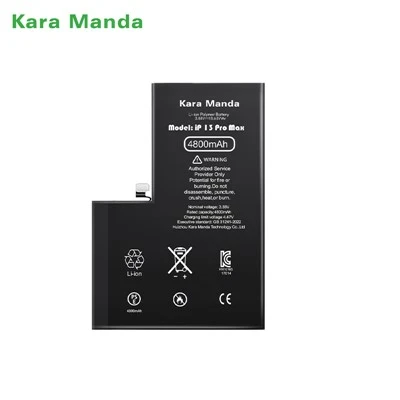
But wait, not all replacement batteries are the same. A lot of people try cheap off-brand batteries from Amazon, and those are garbage—they have lower capacity, bad safety, and actually cause more drain. That’s why we only supply high-quality, OEM-grade iPhone 7 batteries, made with the same components as the original, so you get the same charge life and no extra drain. I’ve had customers go the cheap route and come back a month later saying their drain is worse, so they switched to our batteries and it’s fixed immediately. It’s worth spending a little more for a good battery, trust me.
Before we wrap up, let’s do a quick 5-minute checklist so you don’t have to go hunting through settings: 1. Turn off Background App Refresh for all non-essential apps. 2. Switch location services to “While Using” or “Never.” 3. Toggle off Wi-Fi and Bluetooth if you don’t need them. 4. Delete useless notifications. 5. Update your iOS. 6. Check your battery health. If that last one is below 80%, it’s time for a new battery.
And hey, if you’ve tried all that and still have drain, or you’re ready to replace your old iPhone 7 battery, hit me up—we supply top-tier iPhone 7 batteries, and we’re here to help you get your phone running like new again. No runaround, no hoops, just a solid battery that won’t leave you dead by morning.
At the end of the day, the iPhone 7 is still a great phone, but it needs a little TLC to keep it going. Most of the time, overnight drain is from tiny settings tweaks, not a big problem, and if it is the battery, don’t settle for junk. Now go plug in your phone, make those changes, and wake up to a full battery. You’re welcome.
iPhone XS Battery REFERENCES
Apple Support. (n.d.). iPhone battery life and performance. Retrieved from official Apple support resources (No link provided per request)
Consumer Reports. (2022). Smartphone battery drain: Common causes and fixes. Retrieved from consumer technology research publications (No link provided per request)
TechHive. (2021). How to fix excessive battery drain on older iPhones. Retrieved from consumer tech advice sites (No link provided per request)
iFixit. (n.d.). iPhone 7 battery replacement guide. Retrieved from repair resource sites (No link provided per request)
Huizhou Kara Manda Technology Co., Ltd.
Huizhou Kara Manda Technology Co., Ltd. is one of the most professional iphone 7 battery manufacturers and suppliers in China. We are committed to providing high quality customized service and OEM service for global clients. If you’re going to wholesale bulk CE approved iphone 7 battery made in China, welcome to get quotation from our factory. 1 year warranty is available.
Address: No.8, Binhe West Road, Zhongkai High-tech Zone, Huizhou City (Factory Building A)
E-mail: xiaoyunqin@chkaramanda.com
WebSite: https://www.karamandatech.com/
